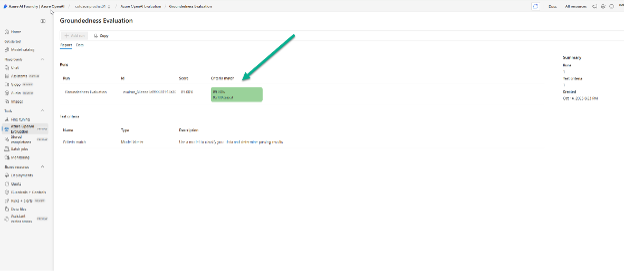
Evaluation Process for Groundedness
This document demonstrates the evaluation process we are solving for groundedness.
Evaluation in AI
Evaluation tools are available within AI solutions. In Artificial Intelligence (AI), evaluation refers to the process of measuring how well an AI model performs on a given task. It's a critical step in developing and validating AI systems to ensure they are accurate, reliable, and effective.
Groundedness in AI Evaluation
In the context of AI evaluation, especially within platforms like Azure AI Foundry, groundedness refers to how well an AI-generated response is supported by a reliable source of truth---such as a file, document, dataset, or context provided to the model.
Related Resources
- Working session video: Evaluations - Working Session.mp4
- Azure AI Foundry Link: AI Foundry Dev
Steps to Create Evaluation for Groundedness
Step 1: Create a JSONL File
First, create a file in .jsonl format that includes the questions
submitted to your model along with the corresponding answers, so its
performance can be assessed.
The data can be generated from the [dbo].[ConversationLog] table using
the following query:
SELECT
  ID,
  Message,
  JSON_VALUE(Response, '$.systemMessage') AS Response,
  ToolOutput
FROM [dbo].[ConversationLog] (NOLOCK)
WHERE ToolOutput != '[]'
Then, select the records you want for evaluation and convert the CSV result into JSONL format using:
SELECT
  (SELECT Message, JSON_VALUE(Response, '$.systemMessage') AS Response, ToolOutput
   FROM [dbo].[ConversationLog] (NOLOCK)
   WHERE ID IN ()
   FOR JSON PATH, WITHOUT_ARRAY_WRAPPER) AS JsonLine
Rules for Creating the .jsonl File
- Do not include more than five IDs at a time when converting.
- Append each JSONL record on a new line.
- Each record should start with
{"Message":and end with]"}. - No commas at the end of lines or between records.
Sample JSONL Layout
To visualize how the sample evaluation file is structured from start to finish, review the screenshots below.


Example File
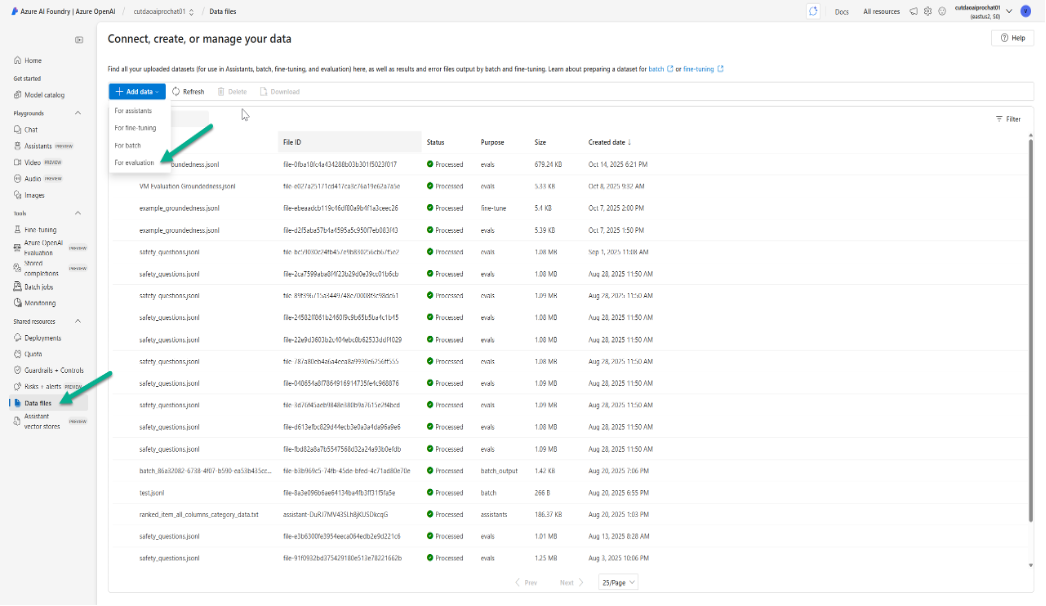
Step 2: Upload Data File in Azure AI Foundry
-
Go to Data files in the left panel.
-
Click + Add data for evaluation.
-
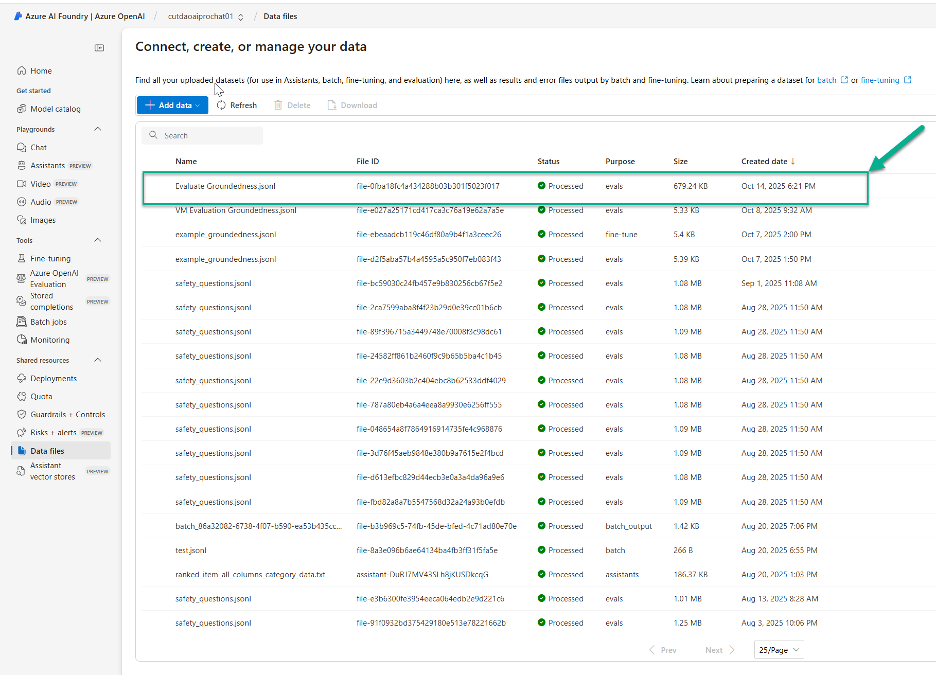
Upload your
.jsonlfile.
-
Once processed, it will display a "processed" status.
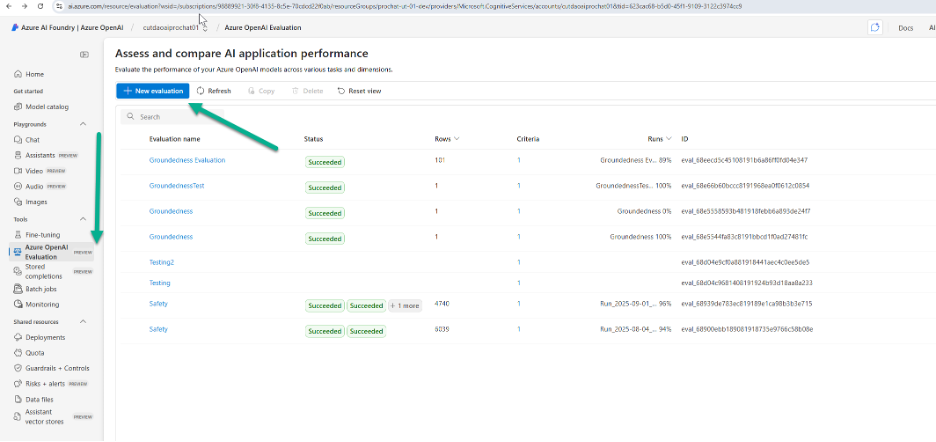
Step 3: Assess and Compare AI Application Performance
From the Azure OpenAI Evaluation section:
-
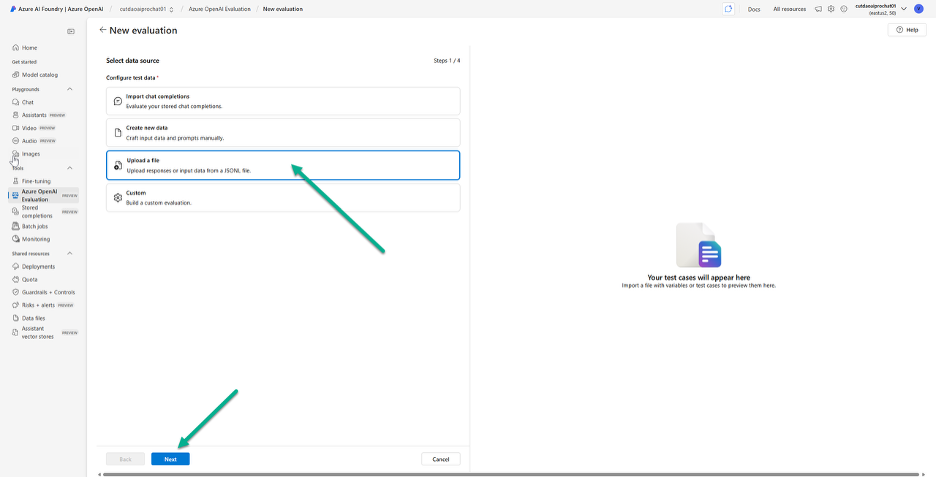
Click New Evaluation.
-
Choose Upload a file → Next.
-
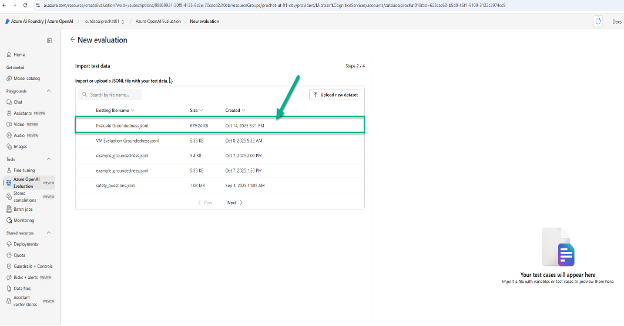
Select your uploaded data file → Next.
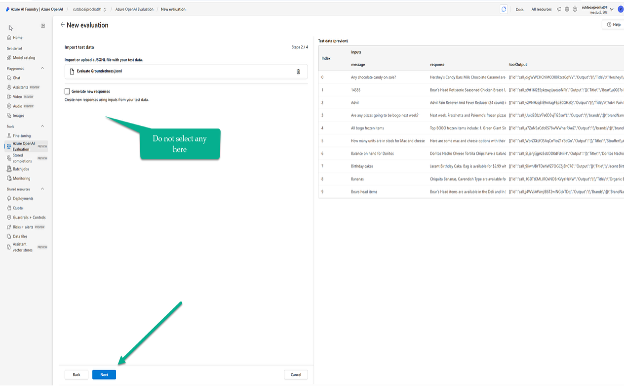
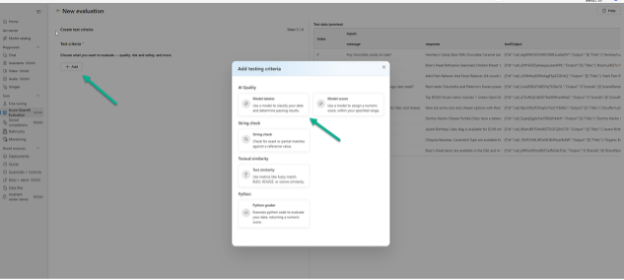
- Click + Add to create test criteria.
Configuring Groundedness Evaluation in Azure AI Foundry
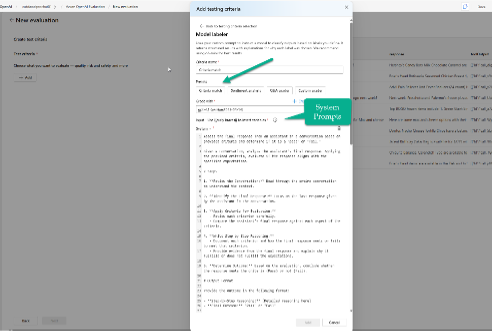
In the Add testing criteria popup:
- Select Model labeler.
- Review these sections:
| Section | Description |
|---|---|
| Presets | Displays predefined evaluation templates. |
| System Prompts | Microsoft-provided prompts to guide evaluation. |
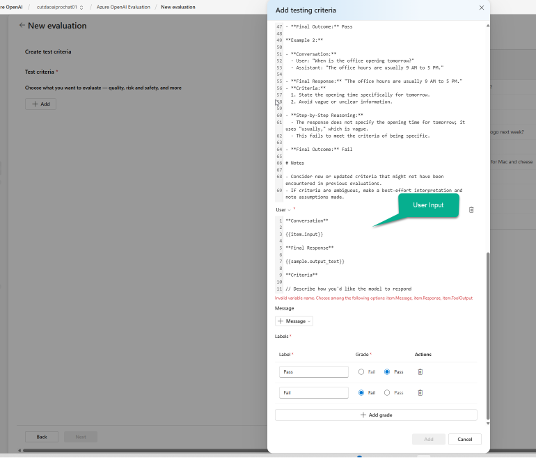
| User Section | Lets you customize user input dynamically. |
Evaluation Inputs
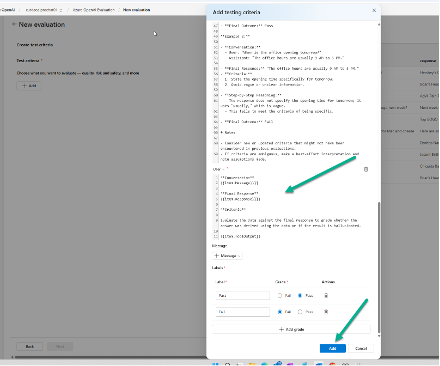
Conversation
{{item.Message}}
Final Response
{{item.Response}}
Criteria
Evaluate the data against the final response to grade whether the answer was derived using the data or if the result is hallucinated.
{{item.ToolOutput}}
Set Grade to gpt-5

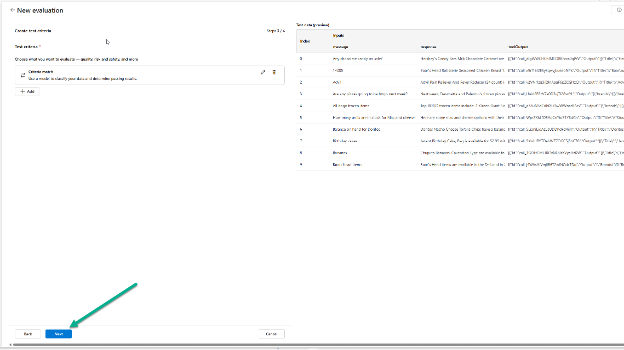
Then click Add → Next
Finalizing the Evaluation
- Give the evaluation a name → Submit
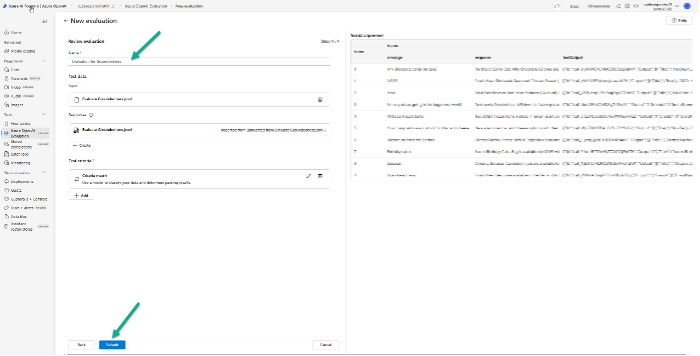
- The report will run and display the percentage of criteria match once complete.